Saturday, 1 August 2015

C# Datagridview hide first column


dataGridView1.RowHeadersVisible = false;

Monday, 6 July 2015

Remove duplicate strings from a string or int array in C#

string[] spdfIn =
{ "abc", "xyz","abc", "def", "ghi", "asdf", "ghi","xd", "abc" };
 
spdfIn = spdfIn.Distinct().ToArray(); 


int[] int1={1,2,3,4,4,5,1};
int1=int1.Distinct().ToArray(); 

Friday, 24 April 2015

Panel printing

private void btnPrint_Click(object sender, EventArgs e)
        {           
            System.Drawing.Printing.PrintDocument doc = new PrintDocument();
            doc.PrintPage += this.Doc_PrintPage1;
            PrintDialog dlgSettings = new PrintDialog();
            dlgSettings.Document = doc;
            //if (dlgSettings.ShowDialog() == DialogResult.OK) // hide this line default Printer is select
            {
                doc.Print();
            }
        }
        private void Doc_PrintPage1(object sender, PrintPageEventArgs e)
        {
            float x = e.MarginBounds.Left;
            float y = e.MarginBounds.Top;
            Bitmap bmp = new Bitmap(this.pnlPrint.Width, this.pnlPrint.Height);
            this.pnlPrint.DrawToBitmap(bmp, new Rectangle(0, 0, this.pnlPrint.Width, this.pnlPrint.Height));
            e.Graphics.DrawImage((Image)bmp, 0, 0);
        }

Tuesday, 24 March 2015

Get Default Printer paper size and Printing Text

public void getPapersize() //Get Default Printer paper size
        {
            using (System.Drawing.Printing.PrintDocument PD = new System.Drawing.Printing.PrintDocument())
            {
                foreach (System.Drawing.Printing.PaperSize P in PD.PrinterSettings.PaperSizes)
                {
                    Console.Write(P.PaperName + " ");
                    double W = P.Width / 100.0;
                    double H = P.Height / 100.0;
                    double[] M = { 1, 72, 200 };
                    for (int I = 0; I <= 2; I++)
                    {
                        MessageBox.Show((W * M[I]).ToString() + " " + (H * M[I]).ToString() + " ");
                    }

                }
            }
        }
------------------------------

public void Print(string s)
        {
            System.Drawing.Printing.PrintDocument PD = new System.Drawing.Printing.PrintDocument();

            PD.PrintController = new System.Drawing.Printing.StandardPrintController();
            PD.PrintPage += delegate(object sender1, System.Drawing.Printing.PrintPageEventArgs e1)
            {
                e1.Graphics.DrawString(s, new Font("Times New Roman", 12), new SolidBrush(Color.Black), new RectangleF(0, 0, PD.DefaultPageSettings.PrintableArea.Width, PD.DefaultPageSettings.PrintableArea.Height));

            };
            try
            {
               
                PD.Print();
            }
            catch (Exception ex)
            {
                throw new Exception("Exception Occured While Printing", ex);
            }


        }

Monday, 1 September 2014

If string is not null or empty else

string.IsNullOrEmpty(someString) ? "<NULL>" : "<not NULL / Empty>";

Tuesday, 15 July 2014

How to hide Close (x) button for Windows Forms?


Method 1
 
this.ControlBox=false;


Method 2

private const int CP_NOCLOSE_BUTTON = 0x200;
protected override CreateParams CreateParams
{
    get
    {
       CreateParams myCp = base.CreateParams;
       myCp.ClassStyle = myCp.ClassStyle | CP_NOCLOSE_BUTTON ;
       return myCp;
    }
}

Tuesday, 1 April 2014

Configure Internet Explorer to open Ms Office (Word,Excel,Power Point Etc)documents

Method 1


Open My Computer and On the Tools menu click Folder Options.


Click the File Types tab.In the Registered file types list, click the specific Office document type (for example, Excel), and then click Advanced .


In the Edit File Type dialog box, click  the Browse in same window check box .and click clear other check box


Click OK 2 times.


private void Form1_Load(object sender, EventArgs e)
{
    webBrowser1.Navigate(@"C:\sample.xls");
}

Friday, 21 March 2014

textbox password Rebuild

if (cshowPassword.Checked != true)
{
      txtPassword.PasswordChar = '*';
}
else
{
     txtPassword.PasswordChar = char.Parse("\0");
}

Thursday, 20 March 2014

Unexpected Error creating debug information file ***.PDB


Answers (This worked for me:)
  1. Shut down VS.NET
  2. Browse to the project in Windows Explorer   
  3. Delete the /obj/ folder.
  4. Delete the project outputs (.dll and .pdb) from /bin (not sure if this step is necessary)
  5. Can't hurt but might help: delete the project outputs from any other project /bin folders in the solution that is having issues (wasn't necessary for me)
  6. Restart VS.NET
  7. Rebuild


Tuesday, 26 November 2013

Run a program automatically when Windows starts short cut display 'Windows startup' and add 'system tray'


using IWshRuntimeLibrary;
using Microsoft.Win32;
using System.IO;


namespace Sample
{
        public partial class Form1 : Form
        {
                    RegistryKey reg = Registry.CurrentUser.OpenSubKey("SOFTWARE\\Microsoft\\Windows \\CurrentVersion\\Run", true) // check windows is run     
                    private NotifyIcon tryIcon; //add icon in 'System Tray'
                   private ContextMenu trayMenu;  // create menu
            
               public Form1()
             {
                      // if windows is run my app (setup1) is run
                      reg.SetValue("MyApp", Application.ExecutablePath);
                      MessageBox.Show("Test");
           

                       //create Menu Item
                       trayMenu = new ContextMenu ();

            //Menu Item (Show, Hide, Exit) ==> menu Function (OnShow, OnHide, OnExit) in #region System Tray Menu
            trayMenu.MenuItems.Add("Show", OnShow);
            trayMenu.MenuItems.Add("Hide", OnHide);
            trayMenu.MenuItems.Add("Exit", OnExit);

            // Display icon in "System Tray" (refer image first) 

            tryIcon = new NotifyIcon(); // set Systen tray icon
            tryIcon.Text = "Setup1"; // set system tray text
            // how to add resources  -> click 'Properties' -> open the 'Resources.resx' -> change to string to icon  -> click 'Add Resource' - select 'Add Existing file' and select icon
            tryIcon.Icon = Properties.Resources.ftprush_install; // add icon in 'System Tray'
           tryIcon.ContextMenu = trayMenu; // add menu at "System try"
            tryIcon.Visible = true; // Icon visible true
           
            InitializeComponent();
        }
        void CreateStartupShortcut()  // Display "Windows Startup" (refer image 2)
        {           
            string startupFolder = Environment.GetFolderPath(Environment.SpecialFolder.Startup);
            WshShell shell = new WshShell();
            string shortcutAddress = startupFolder + @"\MYApp.lnk";
            IWshShortcut shortcut = (IWshShortcut)shell.CreateShortcut(shortcutAddress);
            shortcut.Description = "A startup shortcut. If you delete this shortcut from your computer,   LaunchOnStartup.exe will not launch on Windows Startup"; // set the description of the shortcut
            shortcut.WorkingDirectory = Application.StartupPath; /* working directory */
            shortcut.TargetPath = Application.ExecutablePath; /* path of the executable */
            // optionally, you can set the arguments in shortcut.Arguments
            // For example, shortcut.Arguments = "/a 1";

            shortcut.Save();
        }

        private void Form1_Load(object sender, EventArgs e)
        {
            this.Opacity = 0; // form not display (this is hide)
            this.ShowInTaskbar = false; // display hide in Task bar
            //this.FormBorderStyle = System.Windows.Forms.FormBorderStyle.SizableToolWindow; // in       Design mode:
        }

        #region System Tray Menu
        private void OnExit(object sender, EventArgs e)
        {
            Application.Exit();
        }

        private void OnShow(object sender, EventArgs e)
        {
            this.Opacity =1;  // form  display (this is show)
            this.ShowInTaskbar = true // display  in Task bar           
        }

        private void OnHide(object sender, EventArgs e)
        {
            this.Opacity = 0;  // form not display (this is hide)
            this.ShowInTaskbar = false// display hide in Task bar
        }
        #endregion System Tray Menu

         }
}

Download  Sample Coding (LaunchOnStartUp.rar)

Download  Interop.IWshRuntimeLibrary.dll

Wednesday, 20 November 2013

How to get Listview subitems index

if (listview1.SelectedItems.Count > 0)
{
                int icolcount = 0; string  sID = "";
                foreach (ColumnHeader header in listview1.Columns)
                {  
                    if (header.Text.ToLower().Trim() == "id")
                    {
                        sID= listview1.SelectedItems[0].SubItems[icolcount].Text;
                        break;
                    }
                    icolcount ++;
                }
}

Saturday, 16 November 2013

How to change Listview subitem back color

How to change the backcolor of a listview subitem using its own value

ListViewItem newlist= new ListViewItem( "Item 1");
newlist.SubItems.Add( "Color" );
newlist.SubItems[1].BackColor = Color.FromArgb( -16711936 );
newlist.UseItemStyleForSubItems = false;

listView1.Items.Add( newlist);

A free, cross-platform browser-based IDE (ASP.NET work online)

CodeRun Studio is a free service

CodeRun Studio is a cross-platform Integrated Development Environment (IDE), designed for the cloud. It enables you to easily develop, debug and deploy web applications using your browser.
CodeRun Studio can be used instead or alongside your existing desktop IDE. You can upload existing code in order to test it in the cloud or for sharing with your peers.

Friday, 8 November 2013

Avoid confirmation box in MsiExec uninstall


MsiExec.exe /I{A52EEC0E-D0B7-4345-A0FF-574804C7B78A} /passive

{A52EEC0E-D0B7-4345-A0FF-574804C7B78A} --> is Product Code
 
If you want to completely hide the UI, use the /quiet (நீங்கள் முற்றிலும் UI மறைக்க விரும்பினால்)

switch instead of /passive.


Example C#

            Process p = new Process();
            p.StartInfo.FileName = "msiexec.exe";
            p.StartInfo.Arguments = "/x {A52EEC0E-D0B7-4345-A0FF-574804C7B78A} /passive";
            p.Start();

OR

            Process p = new Process();
            p.StartInfo.FileName = "msiexec.exe";
            p.StartInfo.Arguments = "/x {A52EEC0E-D0B7-4345-A0FF-574804C7B78A} /quiet";
            p.Start();

             Process p = new Process();
            p.StartInfo.FileName = "msiexec.exe";
            p.StartInfo.Arguments = "/qn /x {A52EEC0E-D0B7-4345-A0FF-574804C7B78A}";
            p.Start();

Saturday, 14 September 2013

Color to RGB and hex Value

HexConverter
 
DialogResult result = colorDialog1.ShowDialog();
if (result == DialogResult.OK)
{
    Color c=colorDialog1.Color;
    string HexConverter= "#" + c.R.ToString("X2") + c.G.ToString("X2") + c.B.ToString("X2");
}

RGBConverter

DialogResult result = colorDialog1.ShowDialog();
if (result == DialogResult.OK)
{
    Color c=colorDialog1.Color;
    string HexConverter= "RGB(" + c.R.ToString() + "," + c.G.ToString() + "," + c.B.ToString() + ")";
}

Tuesday, 10 September 2013

C# array null/empty string values

String[] URL= {"1","2","","4","6",""};

var temp = new List<string>();
foreach (var s in URL)
{
         if (!string.IsNullOrEmpty(s))
         {
              temp.Add(s);
}
URL = temp.ToArray();

Monday, 1 July 2013

How to remove recent projects from Visual Studio Start Page

To remove the projects from the list, follow these steps:
  1. Close Visual Studio if it is running.
  2. Start the Registry Editor (run regedit).
    Registry Editor
  3. Navigate to this registry key:
    HKEY_CURRENT_USER\Software\Microsoft\VisualStudio\8.0\ProjectMRUList
    Registry Editor 2
  4. Then delete the key that has the project you do not want to keep in the list.

Friday, 28 June 2013

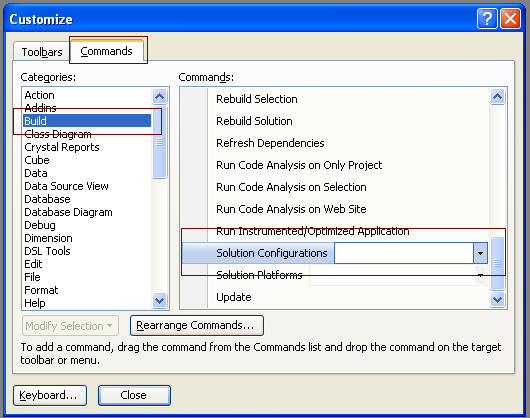
Visual Studio 2008 - Toolbar missing 'Release' / 'Debug' dropdown build configuration

It describes how to get this useful dropdown visible:
  1. In Visual Studio 2008, click “Tools” -> “Options”

  1. Under “Projects and Solutions” -> “General”, check “Show advanced build options”, and click “OK”
 
          2.Right click anywhere in the blank space of the toolbar and click “Customize…”

      
       3.In “Commands” tab, select “Build” in “Categories”.

4. Scroll the right listbox to the bottom and drag “Solution Configurations” to the toolbar

Tuesday, 4 June 2013

C# - Equivalent to the function GetSetting() in VB .NET

Getsetting DLL Download

using Microsoft.Win32;


public static string GetSetting(string applicationName, string sectionName, string key, string valeurParDéfaut)
        {
            StringBuilder path;
            RegistryKey registryKey;

            path = new StringBuilder(@"Software\VB and VBA Program Settings");

            // Generate the path of the key
            if (string.IsNullOrEmpty(applicationName) == false)
            {
                path.Append('\\');
                path.Append(applicationName);

                if (string.IsNullOrEmpty(sectionName) == false)
                {
                    path.Append('\\');
                    path.Append(sectionName);
                }
            }
            // Open key
            registryKey = Registry.CurrentUser.OpenSubKey(path.ToString());


            // If the key does not exist, return the default Open key
            if (registryKey == null)
            {
                return valeurParDéfaut;
            }
            try
            {
                //Read the value contained in the key
                return (string)registryKey.GetValue(key, valeurParDéfaut);
            }
            finally
            {
                //registryKey.Dispose();
            }
        }

public static string GetSetting(string applicationName, string sectionName, string key)
        {
            return GetSetting(applicationName, sectionName, key, null);
        }


//It is now possible to use this class like this:
string s;
            s= Getsetting.Form1.GetSetting("JRFleetini", "DatabasePathini", "dbPathini", null);
            MessageBox.Show(s);